Monday, June 20, 2016

i3lets, an open source Interactive Intelligence PowerShell Module

7:21 PM Posted by A 1 comment
Well if it isn't obvious, this really isn't a Service Manager focused post. Well ok it sort of is. You know what - little bit of column A little bit of column B. This is a PowerShell centric post with regards to Interactive Intelligence phone systems. While Interactive Intelligence seems to be making all sorts of waves with their phone system (leader in Gartner Magic Quadrant for Contact Center 8 times in a row per their website), the thing missing to me as a SCSM/SCO/SMA snob is the ability to control it with PowerShell. Fortunately they offer the IceLibSDK, a C# library that allows development for their phone system and in doing so...indirectly enable PowerShell control over it.

So after a few hours (it was about 5 hours) I discovered not only does the IceLibSDK ship with an example PowerShell module but it will never load/compile out of box. I've reworked it, recompiled, and most importantly extended the functionality of the OOB example of ConfigurationCmdlet and produced i3lets to work with PowerShell 4+

i3lets are an open source PowerShell library I created to enable administrative control of an Interactive Intelligence phone system. Using these, you can begin to automate all of the classic IT administrative duty of automating said phone system. Create users, modify users, license users, reset passwords (sounds like a great self-service request for Service Manager). This binary module has been tested and confirmed working against PowerShell 4, 5, and SMA.


This is a 100% first pass at a PowerShell module for said phone system that gets the job done but has tons of room for improvement. If you feel like you could contribute in anyway, please ping me and I can get you involved in the Codeplex GitHub project. Otherwise, get your download on and start automating!

Thursday, February 25, 2016

Exchange Connector, Our Analysts Hate Employee Signature Graphics in Work Items!

10:36 PM Posted by A , No comments

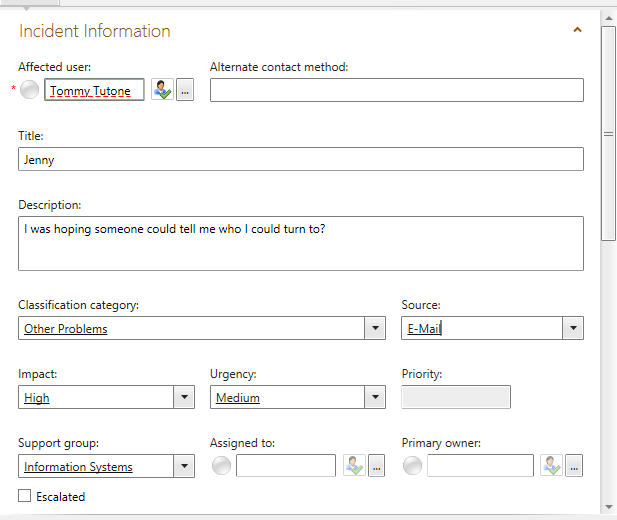
My email signature doesn't look like this, but I needed a graphic to illustrate a point...

So you have the Exchange Connector running in your SCSM deployment to convert emails to either an Incident or Service Request. What holds true in both scenarios is that the Exchange Connector will take the email's attachments and add them as Attachments in the Related Items sections of the Work Item. This is great and of course super awesome - but if your company has a corporate signature or your users decide to spice things up with their own graphics, the Exchange Connector just goes about it's job of...

I FOUND PICTURES, THOSE ARE ATTACHMENTS TOO! YOU'RE WELCOME! G'BAI!

But it'd be great if we had a bit more logic around this to remove email signature photos or perhaps more to the point - let's remove attachments less than X File Size from New Work Items (Incidents/Service Requests).

And believe it or not, the solution we're going to build doesn't exist in Service Manager at all. Well, I guess we could do it in Service Manager via a custom PowerShell workflow saved into a sealed management pack but I'm writing post this with the intent of 0 lines of code and a focus of all your automation/process existing in, well the automation wing of System Center (Orchestrator)! To be clear, even going the pure SCSM route means anytime you want to change this particular file size value, you're going to have to reseal and constantly update the associated DLL file on your workflow server. Now you could go build a custom GUI for your Settings pane in SCSM but...well it's just one more thing to admin/do/build and if you're not a developer quite an undertaking. That and I'm somewhat counting on you not having that kind of time on your hands with the need to just get it done and move onto the next thing.

Get excited and make things, let's do this!


To Orchestrator...
For the purposes of this post, I'm going to write this runbook against Incidents. But I'm sure you'll quickly see how you could alter this to Service Requests.

Alright, so first things first. Here's the runbook we're going to build:


1. Monitor New Email Incidents
2. Get Incidents
3. Get Relationship (Incidents to Attachments)
4. Get All Attachments
5. Get Signature Attachments
6. Delete Relationship (Remove Signature Photos)

1. Monitor New Email Incidents

Here I grab a "Monitor Object" from the SCSM activities for Orchestrator and configure as such. Notice the shape of the data we're defining here -
  • New Incidents
  • Source = Email
It goes without saying, if you've done something really complex with your Email Incidents (or SRs) you'll want to modify this appropriately so the scope of this runbook meets your other configurations.

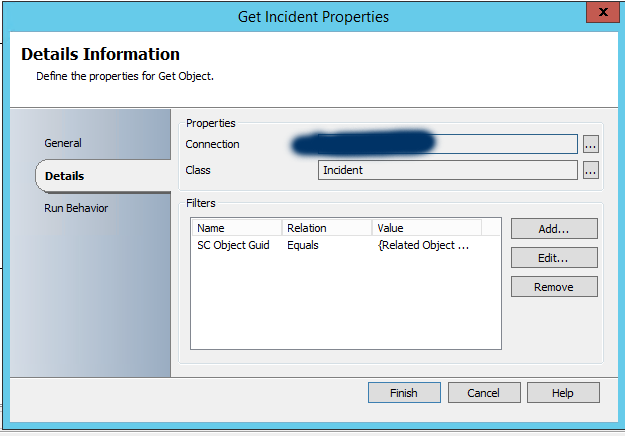
2. Get Incidents
This step grabs all the incidents discovered in step 1

This is achieved by setting the SC Object Guid equal to the Published Data from Step 1

3. Get Relationship (Incidents to Attachments)

Here we're defining the relationship to obtain all attachments from those New Email Incidents. In this case, the related class is File Attachment (System.FileAttachment)

4. Get All Attachments
With the Get Relationship producing the related objects, we need a Get Object to grab the individual file attachments.

Again, we're going to use the File Attachment (System.FileAttachment) class to match the objects received the get "Get Relationship" step previously. The SC Object Guid equals the Related Object Guid

5. Get All Signature Attachments
This is going to look repetitive, but fret not the final payoff is at the end...


Again - I'm doing almost the same thing. The difference is now the filter is SC Object Guid equals the SC Object Guid from Step 4 (aka all of the attachments). Again, I know this is the same thing and I still don't have the photo attachments. I in fact still have all the same attachments in this step as I did in step 4...but read on, we will fix this!

6. Delete Relationship (Remove Signature Photos)
This one is really straightforward, delete the relationship between the Incident and the Attachment which effectively removes the attachment from the Incident!


Here the Object Guid to delete is the Relationship Object Guid from Get Relationship in Step 3.

Alright, I think I see what you did here. But this still deletes all attachments in it's current iteration. You said we were going to do less than some file size!

Link Condition...
The link between Get All Attachments and Get All Signature photos is where we're going to define the filter of our "less than" condition.


Whoa whoa whoa...hold on a second. Matches Pattern? Wait. Equals? There isn't less than! WHAT?! THIS CAN'T BE DONE!

Yeah...I painfully discovered the same thing. The Published Data property of "Size" from the Get All Attachments is text. That's right. Text. If it was an number, we could easily do this. To be honest, I wish I knew why this was the case but you know what, we can do this with matches pattern and building a regular expression

Ugh...I hate regular expressions. I immediately regret building this runbook.

Well. No use making you hit your head against the desk, here's the regular expressions to match the following ranges to insert into the value property of this link condition. By using these, your runbook will then remove attachments from new Incidents that are 1-X bytes:


1-1000
\b(?:1000|[1-9][0-9]{1,2}|[1-9])\b

1-2000
\b(?:2000|1[0-9]{3}|[1-9][0-9]{1,2}|[1-9])\b

1-3000
\b(?:3000|[12][0-9]{3}|[1-9][0-9]{1,2}|[1-9])\b

1-4000
\b(?:4000|[1-3][0-9]{3}|[1-9][0-9]{1,2}|[1-9])\b

1-5000
\b(?:5000|[1-4][0-9]{3}|[1-9][0-9]{1,2}|[1-9])\b

1-6000
\b(?:6000|[1-5][0-9]{3}|[1-9][0-9]{1,2}|[1-9])\b

1-7000
\b(?:7000|[1-6][0-9]{3}|[1-9][0-9]{1,2}|[1-9])\b

1-8000
\b(?:8000|[1-7][0-9]{3}|[1-9][0-9]{1,2}|[1-9])\b

1-9000
\b(?:9000|[1-8][0-9]{3}|[1-9][0-9]{1,2}|[1-9])\b

1-10000
\b(?:10000|[1-9][0-9]{1,3}|[1-9])\b

1-11000
\b(?:11000|10[0-9]{3}|[1-9][0-9]{1,3}|[1-9])\b

1-12000
\b(?:12000|1[01][0-9]{3}|[1-9][0-9]{1,3}|[1-9])\b

1-13000
\b(?:13000|1[0-2][0-9]{3}|[1-9][0-9]{1,3}|[1-9])\b

1-14000
\b(?:14000|1[0-3][0-9]{3}|[1-9][0-9]{1,3}|[1-9])\b

1-15000
\b(?:15000|1[0-4][0-9]{3}|[1-9][0-9]{1,3}|[1-9])\b


Once you've got your filesize requirements, check your runbook back in and click Run to get it started.


Done!
Hope this helped curb a common complaint against SCSM and potentially within your own deployment.

Sooo...uhhh...I have another file size for a regular expression you didn't list. I know you can't list every conceivable pattern, so....little help?

There are a few tools that can help you match a range of numbers with a regular expression. Bear in mind, matching numbers with a regex is inherently a bit more challenging because regex's aren't really meant to match numbers (integers). The fact this works, well is sort of hacking a regex to do it. Regardless, it works, so how can you build your own if this beast seems beyond your current scope of knowledge? Here's my two recommendations:

1. A lot of sites mention this one - utilitymill.com/utility/Regex_For_Range - I've used it once or twice before but a recent visit is asking for a login. No Bueno.

2. Regex Magic is something you will invariably come across in your searching for how to quickly build a regex with no experience building regular expressions. It's either a 14 day trial or $40 to purchase but I can certainly attest to it getting the job done. Make no mistake, learning that tool is a bit like learning Dreamweaver and not understanding HTML - you're teaching yourself how to use a tool, not understand the language.

Wednesday, February 10, 2016

In Defense of Class Extension vs. Inheritance

10:18 PM Posted by A , 2 comments
Hrmmm...


As I've shared on the About Me page, I'm just someone who loves Service Manager/System Center. I'm just another IT guy out there managing and helping SCSM deployments. So, in the time since my last post (which looking at it has been awhile...holy crap) and no less the deployment I provide advice on when asked/invited to my opinion has really started to change around the concept of Extending classes and Inheriting them. I would argue that I've taken a violent, 180 degree swing in the other direction. But I'll let you be the judge of what is best for you and your environment. But first, let's pretend for a bit and fast forward your SCSM deployment a few years into the future...


When you're doing authoring with the SCSM Authoring Tool (and by now, I think we all know that means Notepad++) and modifying SCSM functionality you almost always have to start your development with the fundamental question of...

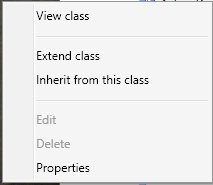
Inherit this class or Extend this class?

In a previous post of mine, we walked through building an employee onboarding process (and really building something to suit the idea of a host of HR related scenarios), we chose to Inherit the Service Request class. If you're new to SCSM reading that/similar posts may seem to make a great deal of sense...


Pros of Class Inheritance:
  • Inherited classes are unique and do not "disrupt" or change stock SCSM functionality that Microsoft ships SCSM with.
  • You can have really specific fields/concepts since they pertain to the new class instead of affecting the "core" class, in this way a derivative class has been created
    • This is great for things like Employee Management or Create Virtual Machine as we have a lot of fields that don't exist out of box and need to call them into existence
  • You can have a custom form exist in the same management pack as the inherited class
    • Makes the management of this "thing" easier since it's now grouped together into a single management pack

Cons of Class Inheritance:
  • You almost always are going to have to manually edit the XML before sealing
    • This isn't fun/it's tedious work
      • If you keep doing different inherited classes off of the same classes, this can get unruly quickly. This may be manageable as a single SCSM Admin but can quickly become rough as the SCSM Admin numbers grow.
    • It may go without saying, but it's the kind of thing that almost necessitates the position of a full time job to understand this XML, etc. Not a con persae, but really trying to draw attention to the care and feeding of a specific thing within any SCSM deployment
  • Reporting becomes a bit more challenging if you are not the one writing reports or are a SQL/System Center veteran as now your SQL team has to start understanding how the DW changes based on these Inherited Classes.
    • A bit more challenging if your SQL team are not one with SCSM
    • A bit more challenging because you have to custom build out your DW to support these new classes that technically are not the stock ones
      • It's not like this can't be done, but it a classic "just one more thing to do"

So with the above said, generally speaking as a newcomer to SCSM it seems to just make sense that...

Of course I have two or more different classes based on the core one Microsoft ships. I mean, it doesn't make sense to have things like "New Laptop" share things with the base Service Request class. That's why I'm not Extending classes...because I don't want these things jumbled up. It makes sense to keep them separated. I want to have unique classes for each of these requests.

And I too shared this line of thinking for the longest time, because for one reason or another it just made more sense to me that I had dedicated classes. "Of COURSE I would!" I'd say to myself and it's the Employee Management scenario that really highlights this nicely. Because if I had done Class Extension, then all Service Requests in the system gain the properties of "First Name" and "Department" etc. etc...but now I'm here to ask the following...


Why is that such a bad thing? If you don't use the field, you just don't use it. Do you use the OOB Scheduled Start Time in every one of your request offerings? Do you use the OOB Actual Cost in every one of your request offerings?

So then I really started taking this scenario to it's logical extreme. If I'm making the case for "Oh well Employee Management" is different...why is it different? Do I just not like the idea of putting these things together? Sure, maybe that is it. But technically speaking is there a reason it's "bad" persae? Because the above quote is exactly the thought that struck me over the course of the last few months. Think of all of the options Microsoft ships out of the box with the SR class. Think of how many request offering you have published out on your portal. Do you map to ALL of those fields? Probably not. In fact, if you're playing the cautionary game (i.e. avoiding customizations) you may just be mapping things to things like...

  • Alternate Contact Method
  • Description
  • Notes
  • Scheduled Start/End Date (because you need some kind of date field for your request)
  • Boolean you are mapping to some Runbook inside of the SR

Pros of Class Extension:
  • Extended Classes effect all instances of that class, new and old in your system. If you add the "Random Date Field" parameter to a SR or IR, every single SR or IR in the system would get this new property
  • Multiple, disparate templates can feed off of a similar List should you utilize it
    • In the HR scenario the list for Departments is now bound to this new SR Class. Request Offerings based on the stock SR class cannot use this!
  • No XML hacking required, this works exactly like you expect it through the Authoring Tool
  • You can have multiple management packs Extend the same Class
    • So you can still group like extensions into similar management packs
    • But I'd argue that you probably don't want to get crazy with this and would advise sticking to a single management pack extending a single class
  • Reporting doesn't have a net loss as these new fields appear in the DW on the respective Class table. From a SQL perspective, nothing has changed. So if you extend the IR class, it appears on the IncidentDimVw table as though it were actually a part of the IncidentDimVw table out of the box. This is genuinely awesome as you can transform the schema of SCSM through management pack authoring.

    Cons of Class Extension:
    • Extended Classes effect all instances of that class, new and old in your system. If you add the "Random Date Field" parameter to a SR or IR, every single SR or IR in the system would get this new property
      • Again...is this actually such a bad thing technically speaking?

    If anything what you should see as someone in IT, is effectively the same as Extending your Active Directory schema. It's still the same thoughtful planning of "Alright, if we extend the schema what is something that can hold true for a host of scenarios or always serve one very specific one?" But the advantage you have is that you can extend the SCSM class schema's through MULTIPLE management packs which means you could if you so chose - blow away one management pack that extends a class and only lose that specific data. To be clear, the data that would be lost is the data in your warehouse as those items you extend would be pulled on the next sync.

    So what about the Employee Management thing we created? Does this mean I retreat on that? Well...I think it does unfortunatley. To be honest, this is the one scenario I struggle with a lot but I think I have to concede that I'd actually do that differently now. I'd probably change the names of fields to be more generic in some cases, but I would opt for extending the SR class to support this functionality. Because of all the fields in that example, there is one that I think holds a host of future scenarios for your environment and that is "Department" as I shared above. In my example, I stressed the need to create a Department list so you could have a single place to edit and change departments within the SCSM console. This said...when you get approached about "Hey, we need a new Request Offering based on the stock SR template where someone can pick a department" guess what you can't do now?

    Yup. That's right....Short of continuing to use the Employee Management pack for future non-specific HR requests, you can't reference the Department field since it exists and is exclusively bound too this new Service Request class. In the case of a class Extension, all SRs would have the field and all future request offerings/ideas could leverage this same list. Otherwise, you end up with the unruly situation of multiple Department lists within the SCSM console. A less than desirable scenario as now you have multiple lists that effectively serve the same function that you'd have to keep both up to date with. If you're into PowerShell or Orchestrator this scenario is an automation nightmare if you take it to it's logical extreme. Again, I have to concede that over the last several months my opinion on this topic has changed radically and that Class Inheritance and it's respective management has to potential get out of hand really fast.

    Apart from the above scenario of department, what are some actual practical and useful class extensions? What about giving Change Request's a much needed Support Group? And maybe doing the same thing for Manual Activities and Problems? Maybe throw something like "Email Notes 01" into Review Activities so when email notification goes out to review you map certain parts of the request into a dedicated email note area? All in all, I think I'm at the point now where I can think of more reasons and examples to extend vs. inherit a class.


    In conclusion...
    It's with the all of the above said, I argue for Extending Classes in SCSM vs. Inheriting them. I think it makes for cleaner future administration, you still get the granularity of grouping like extensions together and you can continue to build out your SCSM deployment to support larger organization wide initiatives (i.e. using the tool for non-IT based departments such as an HR help desk, etc.)


    Saturday, October 17, 2015

    Deploying "Quick Resolves" for your Team

    12:33 PM Posted by A , No comments
    "Our new SCSM Deployment is just too much for simple things."


    I spend more time typing all this stuff into an Incident, applying it, closing it because of that stupid background workflow issue, re-opening it, then resolving it than I do actually fixing an issue! Make this less awful!

    or

    I just deployed Service Manager. It's hard enough convincing team members this is the ultimate solution, but I can't defend how obtuse the entire Incident resolution process seems for things that take less than a minute to fix.

    If there is a trend I've seen across SCSM deployment is that generally people implement the Exchange Connector and configure it to convert emails to Incidents because they are easier to work with as opposed to a Service Request...with all those activities. What's more, if you and your team are just getting started in SCSM, Incidents feel easier. You have Classifications, you have Support Groups, you have a lot of things that look and feel like a classic "ticketing" system. But more than likely you're familiar with one or both of the above scenarios.

    What can we do? We can Orchestrate ourselves a way out of this and develop Incidents that resolve themselves in a single click without any programming or reverse engineering of SCSM.


    PLEASE NOTE: The following (and really this entire post) is merely a suggestion to curb an issue I hear newcomers levy against Service Manager. What's more, we're solving this with the Incident from Exchange Connector scenario. Ideally, you'd implement a Service Request version of this so as to accurately track break/fix (Incident) against what's needed (Service Request). That said, I'm aware what I'm outlining probably isn't the most ITIL friendly thing.

    Let's Create a New Management Pack in SCSM
    1. Head into Administration
    2. Management Packs
    3. Create a new Management Pack, for the purposes of this demonstration let's call the management pack "Quick Resolve"

    4. Next, let's move over to Library
    5. Templates

    Before we move on, let's revisit the original two scenarios. What's something that happens on your help desk enough, that takes seconds to solve, you want analysts to enter into SCSM, and later report on? Password resets? Come on, there has to be something! Whatever that is...

    6. Create a new Incident template titled the name of the issue you just came up with and save it in your management pack "Quick Resolves". Here's an example of the bare minimum fields you probably want to fill out in this new style of Incident template.


    The significance of building an Incident template is sparing your analysts/team members from filling out the same information, every time, for the same type of issue. What's more, by building a template you've just built a consistent "shape of data." That is to say, come reporting time from your data warehouse you can always find these Incidents based on their Title, Classification, Impact, Urgency, Resolution Time, etc.

    Hey, wait. You said the Incident would auto-resolve. We didn't do that! LIAR! I GOT YOU!

    Time to Move to Orchestrator
    Good news, we have a really, really, REALLY easy runbook to build to auto-resolve our Incidents.


    1. Initialize Data


    2. Get Relationship (Runbook to Incident)


    3. Get Incident
    SC Object Guid equals Related Object Guid from Get Relationship (Runbook to Incident)

    4. Get Relationship (Incident to Assigned To)
    Object Guid equals SC Object Guid from Get Incident

    4a. Link between Step 4 and Step 5
    Exclude, Relationship Class does not equal Assigned To User

    5. Get Assigned To
    SC Object Guid equals Related Object Guid from Get Relationship (Incident to Assigned To)


    6. Create Relationship (Set Resolved By from Assigned To)
    Since we want to give analysts credit for working Incident when it comes to reporting, we need to make sure we mark them as the Resolver of the Incident.


    In the above, we're defining...
    Source Class = Incident
    Target Class = Active Directory User
    Relationship Type = Resolved By User
    Source Object Guid = SC Object Guid from our original "Get Incident" activity
    Target Object Guid = SC Object Guid from our recent "Get Assigned To User" activity


    7. Format Incident Created Date (add 5 minutes)

    I added five minutes because my assumption here is that the Incident your analyst is working on is taking less than 5 minutes to resolve. Maybe you want to make this window even tighter? Your call. The point is, we're getting the created date of the Incident and making up a Resolution Time to be set. Again, we're defining a consistent "shape" to our data.

    8. Resolve Incident

    Here you'll notice I set three fields
    • Status = Resolved (duh)
    • Resolution Category = Walked Through Knowledge Article (because if you think about it, if your analysts are resolving stuff this fast shouldn't there be a knowledge article you are walking people through? Something you are educating someone on? Aren't by definition these style of Incidents a user training issue?
    • Resolved Date = The Created Date/Time + 5 minutes. Specifically "Format Result" from the previous format date time step


    Check your runbook in
    Sync your Orchestrator connector in SCSM


    Back to Service Manager!
    With your runbook synced into SCSM, let's build a Runbook Automation Activity Template from it!

    • Library -> Runbooks -> Find your Quick Resolve runbook we just built.

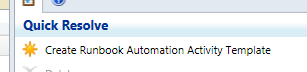
    Upon selecting it, in the top right hand corner choose "Create Runbook Automation Activity Template"


    What management pack are we going to save it in? How about the one we created when we started this whole thing?! Perfect!

    Once you're in your new template, give it a name, description, classify as necessary. But more importantly make sure you have "Is Ready for Automation" checked off.


    Next, head into the Runbook tab -


    The first step in our runbook we created a parameter called "ActivityGUID". Here you can see that very same parameter, but we need to map it to Object -> Id to ensure the data is passed correctly into Orchestrator when the Incident is saved.
    Hit OK and save yourself out of this window.
    FINALLY...
    Go back to your Incident template that you originally created for this "Quick Resolve" style Incident.
    Head into the Activities section of the Incident, hit add, and add your recently created Runbook Automation Activity.
    Save yourself out of the Incident window.
    Done
    So now, you've built a really awesome, quick way to work Incidents in your system. Now it's possible to analysts to choose "Create Incident from Template" and pick the IR Template we just created (runbook and all) OR they can Apply Template to a pre-existing Incident (aka something an employee submits that you have a "quick resolve" for so as to continue to set a consistent shape to your reporting data).
    The runbook will only engage once the Incident has been saved/committed into the system. Which means the only thing the analyst is filling out two fields, Affected User and Assigned To! Now analysts have but a single button to push to create Incidents and get credit for them in downstream reporting! No more weird background workflow issues preventing analysts from creating, saving, and resolving. They can resolve in one click, the OK button!
    It goes without saying, you can copy and build multiple types of this Incident style. Perhaps you want to do one for everything thing that isn't a Service Request yet (which is to say, everything you don't have a process for yet within your organization.)
    Wait, one last question. Why did you use Assigned To? Why not Created By User? Wouldn't that be more reliable? Wouldn't that mean analysts don't even have to fill themselves in as Assigned To?

    Don't forget the scenario we designed for... employees email Incidents into your help desk. So before you go flipping this runbook trying to make it easier, remember that if an employee emails an Incident in they are the Created By User. So unfortunately, that is probably a less than ideal reporting issue to get around.

    Sunday, September 13, 2015

    Malware Flagging and Reporting - SCCM, SCOM, SCSM, and SCO (part 2)

    2:00 PM Posted by A , No comments

    I promise this isn't going to be nearly as bad as the Employee Management thing.

    In this post, we'll assemble the Orchestrator runbook that...
    1. Converts the SCOM Alert/SCSM Incident to a Parent Incident.
    2. Queries your SCCM database for Malware Infected computers
    3. Creates Child Incidents that get attached to the Parent Incident
    4. Adds the SCCM context to each child incident such as Affected CI, malware type, severity, etc.
    5. Define the Primary User of the Computer as the Affected User of the respective Child Incident
    At the conclusion of this post we'll have SCCM alerts, that trigger SCOM alerts, that in turn create an SCSM Parent Incident, that triggers an SCO runbook that creates Child Incidents for each infected computer. If you missed Part 1 that establishes the majority of this setup, you can go back to it here. Otherwise, let's get on with it!

    Get the "SCORCH Dev - SQL" Integration Pack
    You'll need to get a Codeplex SQL Integration Pack for Orchestrator. I know you can write SQL queries out of box with SCO, but their results are less than ideal in terms of Orchestrator flow. This version will spit out the returned dataset in a much more consumable fashion for downstream activities. You can get this IP here.

    It also should be mentioned like many add-ons and tools in the System Center (Orchestrator) space; there are a host of options and as such, there a lot of different IPs that let you work with SQL. I'm personally a fan of this one. It's free, it's simple, and it gets data the way I've come to expect in Orchestrator. If you have another one you prefer (or have paid for) go ahead and use that.

    NOTE: Once imported, you must deploy the IP to all SCO management servers, runbook servers, and any designers where you want to build (and in turn, potentially execute) from. Otherwise you must force the execution of the runbook on a particular server via the runbook's Properties -> Runbook Servers tab.

    WHY: Presumably you have more than one Orchestrator server in the environment and have not changed where the runbook executes - Orchestrator will execute the runbook on an available server in the SCO group. However before execution (as in before you see it in Log or Log History) SCO will verify the IP exists on all available servers. If the IP isn't found the runbook will never execute and there will be no recorded Log History of it ever occurring. However you will see an error in the Events view about how "Resources could not be found."). Not knowing this would probably lead you to a fair amount of frustration as SCSM invokes the runbook and SCO has no recorded history of it ever occurring.

    Building the Runbook
    1. Initialize Data
    2. Get Relationship (Runbook to Incident)
    3. Get Object (Incident)
    4. Update Object (Incident - Is Parent = True)
    5. Run .NET Script (Get the Current Date/Time)
    6. Format Start Date/Time (Start Time)
    7. Format End Date/Time (End Time)
    8. Run SQL Query
    9. Get Object (Windows Computer)
    10. Get Object (Active Directory User)
    11. New Object (Incident)
    12. Create Relationship (Incident has Affected CI)
    13. Create Relationship (Child Incident has Parent Incident)
    14. Create Relationship (Incident has Affected User)

    Here's a screenshot of the entire runbook


    1. Initialize Data


    2. Get Relationship (Runbook to Incident)


    3. Get Object (Incident).
    SC Object GUID Equals Related Object Guid from Get Relationship (Runbook to Incident)


    4. Update Object (Incident)
    Object GUID from "Get Incident"
    Is Parent = True


    5. Run .NET Script (Get Current Date/Time)

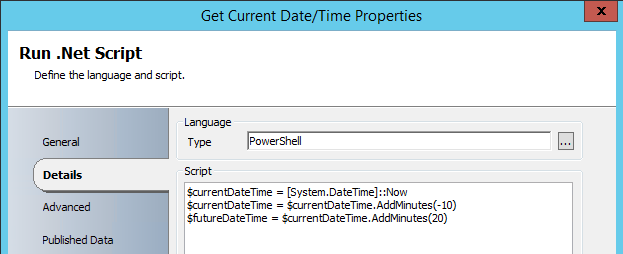
    I feel like this is the step where I'm bound to get someone saying "RIDICILOUS! NOT DOING IT!" - the SQL query we're going to execute against SCCM I need to have some kind of bounds. The most logical (to me at least) are a window of time where the malware was discovered by SCCM's Endpoint Protection. That said, a Run .NET Script was introduced into this runbook to get the current time, minutes into the past, and minutes into the future. For the purposes of this example you can see I said "10 minutes in the past" and "10 minutes into the future". Also, I know you see "20" there, but notice that the second line of the script updates the "currentDateTime" variable. You could just as easily change these values to a smaller window of time.

    Finally, these values are published back out to the Orchestrator data bus so we can use them in our SQL query.


    The two following activities take the outputs of the PowerShell script and format them into a time suited for our SQL Query. Both of these activities use the following Input and Output formats.
    6. Format Start Date (Start Time)
    7. Format End Date (End Time)


    8. Run SQL Query
    You can run the query with or without a global config. Personally, I like the global config route as I may want to use this connection in the future. Either way, you have to define a connection to your SCCM server's database and instance and your SCO service account will need Read on the SCCM DB. Here's the setup for the Global config and how it should look.

    This is the syntax of what your Global Config for the SQL IP for your SCCM DB should look like.


    Then here's the SQL query you'll use in the Run SQL Query Activity. Don't forget to update the WHERE statement to include your Format Result/published data from the two previous time based activities!

    SELECT        DISTINCT dbo.Computer_System_DATA.Name00 AS Computer, dbo.Users.UserName, dbo.EP_Malware.ThreatName, dbo.EP_ThreatCategories.Category, dbo.EP_Malware.Process, dbo.EP_ThreatSeverities.Severity
    FROM            dbo.EP_Malware INNER JOIN
                             dbo.Users ON dbo.EP_Malware.UserID = dbo.Users.UserID INNER JOIN
                             dbo.Computer_System_DATA ON dbo.EP_Malware.MachineID = dbo.Computer_System_DATA.MachineID INNER JOIN
                             dbo.EP_ThreatCategories ON dbo.EP_Malware.CategoryID = dbo.EP_ThreatCategories.CategoryID INNER JOIN
                             dbo.EP_ThreatSeverities ON dbo.EP_Malware.SeverityID = dbo.EP_ThreatSeverities.SeverityID 
    WHERE        (CONVERT(datetime, SWITCHOFFSET(CONVERT(datetimeoffset, dbo.EP_Malware.DetectionTime), DATENAME(TzOffset, SYSDATETIMEOFFSET()))) > 'formatResultStartTimeGoesHere')
                            AND (CONVERT(datetime, SWITCHOFFSET(CONVERT(datetimeoffset, dbo.EP_Malware.DetectionTime), DATENAME(TzOffset, SYSDATETIMEOFFSET()))) < 'formatResultEndTimeGoesHere')

    And what exactly is this SQL query getting you ask? This SQL query returns the Computer name, the Primary User(name), Malware Name, Malware Category, Malware Process name, and the Malware Severity. We also take the time formats and ensure they are converted from UTC to your local time zone. Now if you are really involved with SCCM you may have also immediately realized...

    Wait a second. There is a native SCCM Activity for Orchestrator that lets me execute queries. Stored queries in SCCM no less! Why am I not using that?

    Well...truthfully there is no good reason. You absolutely could do that. The thing is that has to be written in WQL which I'll be honest - is a skill I need to work on. As a result. It means you either "convert" my SQL query to a WQL query you store in SCCM or execute SQL against the DB from this IP. As you can see, I clearly opted for the SQL route. So if you are up for some conversion, go for it and leave a comment and help make this thing more awesome!

    Credit goes to Robin's CM IT Blog and the post "PowerShell: Get SCCM Malware Detections to CSV file" as providing the basis for this query.


    9. Get Computer
    There are a few ways you can do this match. Depending on what your SQL result returns for computer names you can use one of the following properties and of course your choice of Relation field. Although I can't think of reason you wouldn't want to use "Equals" here.

    Display Name, DNS Name, etc. equals fieldXX from your SQL query


    11. Get Primary User
    UserName equals fieldXX from your SQL query. I know I don't have any filters in the screen shot BUT the same exact rule/logic from the previous step applies. So, you'll need a filter!

    You'll also notice something we didn't do here and that's say/build something like "Get Relationship from Get Computer to Active Directory User." We just as easily could have as presumably you are syncing SCCM into SCSM - however, depending on the last time that connector ran the "Primary User" of a computer in SCSM maybe stale. As a result, this is why in the SQL query we pulled the Primary User directly from SCCM and are doing a match inside of a single activity within our runbook. That way we obtaining the most recent data possible.


    12. New Object - Create Incident
    Here's the properties I'll be setting for the Child Incidents that get created for each computer. Obviously pick and choose what you need. For example, if you already set the Classification Category within the SCSM Incident template there is no reason to set it here.


    In the Description of our Incident, we can consume the fieldXX properties from our SQL query. So we can insert the Infected Machine name, Malware Type, Path, Severity, etc.


    13. Create Relationship (Attach Computer to IR)
    If you've never used Create Relationship, it may take some getting used to. But it makes a great deal of sense once you have. What's the source class/point of origin? An Incident. What do we want to do to that Incident? Attach a Windows Computer (Target Class). What is the Relationship Type between these two Classes? SCO only lets you pick possible relationships! Finally, define what the GUIDs are for each of these. The Source Guid is our Incident. The Target Guid is our Computer.


    14. Create Relationship (Attach IR to Parent IR)
    This one may feel weird if you've never defined this kind of relationship. Source and Target are Incidents. The Relationship Type is "Has Parent Work Item". Notice that the distinction between child and parent is made in the definition of these items Guids. My Source Guid is the Incident I created within the execution of this runbook. The Target Guid is the Incident that is the inception of this runbook's execution/the parent we defined upstream earlier.


    15. Create Relationship (Set Primary User as Affected User)
    Source Class: Incident
    Target Class: Active Directory User
    Relationship Type: Affected User
    Source Object Guid: SC Object Guid from "Create Child Incident"
    Target Object Guid: SC Object Guid from "Get Primary User"


    That's That.


    "So why did you make the SQL query the way you did? Wouldn't I then only have a single Parent Incident with a single Child?"


    Sure. What about when the Malware Alert goes off for "Multiple Malware Detected" from SCCM? Etc. Etc. I'd say remove the DISTINCT portion of the query and then modify it to only get the duplicate machines returned from the query.

    The point is - I absolutely recognize this solution isn't perfect. I recognize that parts are clearly open to interpretation given everyone's environment. If anything it introduces the need for at least one or two more child Runbooks that flank perhaps based on the Title of the parent Incident. Perhaps you've REALLY customized your SCCM malware alerting. You'll have more than just a single scenario to account for! More than anything, I hope this serves as something you can build off of and personalize for yourself and your environment. Perhaps the following example is the first runbook that the Incident executes? Or maybe it only converts to a parent in the Multiple scenario and not the single scenario?

    More ideas? Ways to improve? Good! Seize the day and build!

    ...or perhaps it means the SCCM team needs to update their management pack for SCOM so it just does all of this magic for us? :)


    In the next post we'll go over the SCSM SQL query for your data warehouse to start building reports to get things like...
    1. Which Affected User's get the most malware?
    2. Which Affected User Departments get the most malware?
    If you are versed in your SCSM DW these reports may sound incredibly obvious given we have defined all the data we need too. If not, I'm writing the post!

    Saturday, September 5, 2015

    Execute Native Powershell Version 4 in Orchestrator 2012/2012 R2

    2:48 PM Posted by A 3 comments


    Yeah. No joke. That isn't a typo.

    Let me repeat that because it bears repeating.

    You can run Powershell v4, 64bit, natively in Orchestrator 2012.


    NO TUNNELING.
    NO SESSIONS.
    NO MORE RETURN VARIABLES AS OBJECTS FROM A REMOTE SESSION NONSENSE.


    How? Lies you say?!

    Will Udovich (of Cireson) and his finding of a SINGLE blog on the internet from "TechGuy" Michael Seidel mention this little registry hack. One blog? ONE BLOG?!?! Grab anything you can that makes loud noises and make sure EVERYONE knows about this.


    That's it! ONE FREAKING REGISTRY KEY!!! Now Run .NET Script will let you execute things like "Get-ADUser" natively!!!

    I could not believe what I was reading until I fired up my development environment, added this registry key and watched it work exactly like any one would expect it to.


    Also, in the event it wasn't clear...my reaction to all of this can be summarized by the opening gif.

    Malware Flagging and Reporting - SCCM, SCOM, SCSM, and SCO (part 1)

    2:47 PM Posted by A , No comments
    Yeah. Buckle up.

    Alright. So I had this idea and given how much all of the System Center components rely on one another it stood to reason I could execute this idea of mine relatively simply. OH HOW WRONG WAS I!

    Scenario: Configuration Manager (SCCM) does malware reporting/alerting (sort of). If you've configured alerting in SCCM, it sends out an email from spoofed/fake email address out to select parties you've determined. But, you also leverage Service Manager and...
    1. Really would rather have malware get flagged as an Incident and assigned out to someone to investigate or
    2. You want it in SCSM so you can continue to develop and consume all of your reporting from a single point or
    3. You want an Incident as it relates to a Configuration Item or
    4. You want to open Incident on behalf of the Primary User of the PC
    All of those things are valid reasons I think you'd want to start piping this through SCSM. So I thought to myself...

    "Well. This sounds easy. I'll just get the SCCM management pack for SCOM, hook 'em up, forward alerts from SCOM into SCSM. Done."

    Here's the problem though. SCCM has this rule (and the following example applies to all of them) called "Malware detection alert: Malware found." and in SCCM it monitors a collection, and the SCCM alert contains the PC and malware type. When you get SCOM hooked up to monitor this alert, when the alert forwards from SCCM to SCOM. The SCOM alert description says "Please see the Configuration Manager console for more details." Which means when this gets forwarded to SCSM the Incident description says "Please see the Configuration Manager console for more details." And what's worse? Their is only ONE Affected CI in the SCSM Incident and it's your SCCM server(s).

    So I'd say this is less than ideal. Because now all I've done is add unnecessary process and if anything require someone to do more work. I want ALL THE THINGS in Service Manager! Here's the harder news to digest - this isn't an accident. SCCM designed the management pack like this. So if anything it's probably a feature request that I hope this blog post drives them to implement. Alright. That's probably wishful thinking on my part.

    I THINK NOT!
    So before you simply give up and move on. What about this idea...

    SCCM forwards alerts to SCOM. SCOM forwards the Alert into SCSM. The SCSM Incident template for this contains a SCO runbook that executes a SQL query against SCCM. The result set is the machines infected. The runbook converts the Incident to a Parent and creates Child Incidents for each infected computer.

    And that's exactly what I did. No time to waste. Let's build it.


    Configure SCCM to forward Malware Alerts to SCOM
    If you haven't already done so. You'll need to get the SCCM management pack for SCOM installed. Then you'll need to get it configured to correctly poll these alerts.
    1. Obviously - import the management pack into SCOM
    2. Make sure you have SCOM agents deployed to SCCM server(s)
    3. Most importantly - Make sure you have enabled Agent Proxy under the Security tab on each managed SCCM server.
      1. Basically, you are saying the agents can act as a proxy (or if you prefer a "front") to SCCM managed devices. It allows SCOM to see through SCCM to it's "managed things".
    Once you've done that, you may have to let SCOM/SCCM bake awhile before you start seeing the SCCM alerts show up as Not Monitored alerts inside of the SCOM view "Alerts from Configuration Manager". Once they appear though, you may wonder...

    "So why aren't they monitored? They are all green. What gives?"

    The reason they aren't monitored is because the SCCM management pack by default has almost everything disabled by default.

    "That's lame. Why would they do that?"

    Think of it this way. If it was all on by default, SCOM would vomit everywhere. If this is the first management pack you've experienced where everything is off by default your reaction may now be...

    "Oh. Well. Yeah. That does make more sense."

     So how do we start monitoring these things?

    Configure SCOM to listen to SCCM
    Quite simple. Create an override!

    1. Right click on the SCCM alert you want SCOM to monitor
    2. Navigate to Open, and then Health Explorer for Alert You Selected
    3. Now (left) click on "Entity Health - Malware outbreak alert..."
    4. Now click Overrides
    5. Select "Override the Monitor"
    6. Select "For a Specific Class of the Object: ConfigMgr Alert: Malware Alert"

    You should now seen your collections you monitoring in SCCM. Select the collection you want SCOM to poll from SCCM.

    Finally you are placed on the Override screen...


    Here you can see the Default Value for Enabled is False and we are setting the Override value to True.

    If you haven't done so already in your initial setup of the SCCM management pack, now would be a good time to create a SCOM management pack to store all of your SCCM modifications. Once you've done that, save this override in your new Unsealed SCCM Management Pack for SCOM.

    Repeat this process of enabling rules and saving them to your Unsealed SCCM Management Pack for SCOM for as many things as you want SCOM to monitor from SCCM.


    Create a SCOM group for your SCCM Alerts
    Next, let's head into the Authoring section of SCOM. Select Groups and let's create a new group called "Configuration Manager Alerts" we'll save it of course in our recently created Unsealed SCCM Management Pack for SCOM. This way our overrides and groups are stored in the same place.

    Now while you can get fancy with some Dynamic membership. I'm going to use Explicit Membership and grab my Malware Alerts. Just go to Add and under the default scope of "Object" just type Malware and search.


    Then just go ahead and add the rules you want (and more importantly overrode to Enabled True).


    Add a new Rule to your SCOM/SCSM Subscription
    Now you can open up your SCOM subscriptions and open up your SCSM connector/forwarder.
    1. Create a new Subscription
    2. Unselect all Groups and then select the one we just created - Configuration Manager Alerts
    3. Leave "Forward alerts from all targets automatically..." the default option selected.
    4. Hit Next
    5. Leave the default SCOM criteria selected
    6. Done
    Now, since this is just the initial walkthrough it goes without saying (and I'm typing so that works) that you can always go back, modify, and tweak these rules beyond belief. For the purposes of this walkthrough I'm just keeping things simple.


    Create the SCSM Incident Template
    Next let's move into Service Manager to create an Incident template so that when our Alert gets forwarded from SCOM into SCSM we can consistently apply the same Incident. More importantly, when we go to start building reporting we have a consistent shape to our data.

    1. Head into Library
    2. Go to Templates
    3. Create a new Incident template
    4. Store the template in...well...either a management pack you already have and are keeping all of your Incident templates in or create a new Management Pack to store it in. Anyone versed in SCSM will appreciate the thought that goes into grouping your Templates into properly defined management packs. So Step 4 here is a bit open ended since everyone's SCSM environment/administration is always just a little bit different.

    This new Template we'll want to assign a few things out of the gate
    1. Impact
    2. Urgency
    3. Classification
    4. Support Group and/or Assigned To - because after all that's kind of the point of this entire post of mine!

    Save it. You're done in SCSM...for now.


    In the next post (available here) we'll go over the crux of this entire thing...
    1. Creating the Orchestrator Runbook that converts the Incident to a Parent Incident.
    2. Queries your SCCM database for Malware Infected computers
    3. Creates Child Incidents that get attached to the Parent
    4. Adds the SCCM context to each child incident such as Affected CI, malware type, severity, etc.
    5. Define the Primary User of the Computer as the Affected User of the respective Child Incident


    System Center Icons obtained from System Central Central. Here's the direct link.